
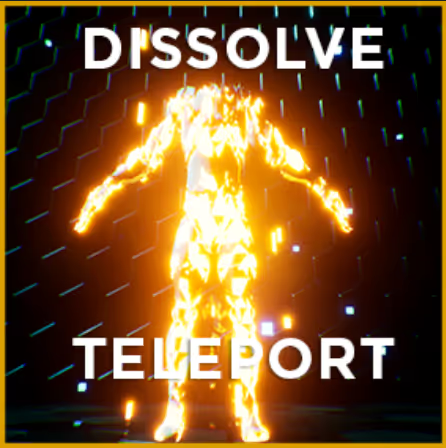
Dissolve Teleport Effect
Documentation, guides, and technical support for Dissolve Teleport Effect in Unreal Engine.
Overview
-
3D Axis Dissolve: Dissolve on X, Y, or Z axes (+ / - direction control).
- Glow & Noise Customization: Dynamic procedural noise pattern and customizable emissive rim glow.
- Displacement & Dissolve Quantity: Fully tunable vertex deformation and boundary offsets.
- Timeline Control: Easily driven via Blueprint Timelines or scalar parameter tracks in Sequencer.
- Universal Compatibility: Works on any static, skeletal, or procedural mesh with masked blend mode.
- One-Click Migration: Migrate core material functions (
MF_DissolveTeleport*) to any Unreal Engine project.
These material functions calculate and override the **Opacity Mask** value. Target materials should have their Blend Mode set to **Masked** and use Material Attributes.
How It Works
The asset relies on modular Material Functions to compute:
- Emissive noise overlays for transition glow
- Vertex deformation and gradient opacity masking
Target master materials must enable Use Material Attributes and set Blend Mode to Masked. Three directional functions are provided (MF_DissolveTeleportX, MF_DissolveTeleportY, MF_DissolveTeleportZ), each preconfigured with robust default values.
Material Inputs Reference:
- Base Material Attributes: Your base material attributes (mandatory).
- Invert Dissolve: Invert dissolve direction (+X/+Y/+Z vs -X/-Y/-Z).
- Glow on Dissolve: Toggle procedural emissive glow along the dissolve edge.
- Dissolve Amount: Primary scalar controlling dissolve progress.
- Displacement Amount: Vertex offset intensity during dissolution.
- Transition:
0= Fully Visible →0.5= Half Dissolved →1.0= Fully Invisible. - Pivot Offset: Adjust dissolve starting origin relative to mesh pivot.
- Noise Tiling: Frequency of procedural noise texture.
- Glow Pattern Control: Thickness and falloff curve of the glow edge.
- Override Noise: Enable custom procedural noise or external texture maps.
Controlling the Effect in Blueprints
The simplest way to drive the dissolve effect is using a Blueprint Timeline driving material scalar parameters on a Dynamic Material Instance:
- Create a Timeline with a
0.0to1.0float curve. - Synchronize the
TransitionandGlow pattern controlscalar parameters. - Call Set Scalar Parameter Value on Materials with the exact parameter names (case-sensitive).
Project Migration
To migrate to an existing project:
- Right-click the
DissolveTeleportfolder in the Content Browser and select Migrate. - Select your target project’s
Contentdirectory. - If migrating bare minimum assets only, migrate the following material functions: -
MF_NoiseGenerator-MF_DissolveTeleportX,MF_DissolveTeleportY,MF_DissolveTeleportZ
Animating in Sequencer
- Add your actor to the Level Sequence and add a Static Mesh Component track.
- Under the component, add a Material Parameter track for your target material slot.
- Add keys to the Transition and Glow pattern control parameters.
Integrating into Master Materials
Integration Step-by-Step
Click on a picture to display it full screen.
Troubleshooting: Residues Remain After Complete Dissolution
The material function calculates dissolve boundaries relative to mesh pivot and bounding box extents. Adjust the Pivot X/Y/Z Offset scalar parameters in your material instance to offset the bounds past the mesh geometry.
Troubleshooting: Unexpected Dissolution Direction
The dissolve effect calculates progression in world or local space depending on rotation. If the dissolve angle does not align with your mesh orientation, switch the material function node to the corresponding axis (e.g. MF_DissolveTeleportX instead of MF_DissolveTeleportZ).